From DataZone to SageMaker Unified Studio: Datalakehouse Blueprint Evolution
In this article, we'll deep-dive into the differences between the Amazon DataZone and Amazon SageMaker Unified Studio (SMUS) DataLakehouse blueprints.
We will cover the major procedural shifts in publishing data and creating subscriptions. Since the new blueprint in SMUS introduces significant changes, we will also explore how to reproduce the legacy DataZone behavior using custom templates.
The DataLakehouse Blueprint
The DataLakehouse blueprint empowers projects to access AWS Lake Formation v3 Glue assets, publish them on a portal, make them subscribable by other projects, and query them in Athena or Redshift environments. In DataZone, this was possible within the same account, cross-account, and recently cross-account/cross-region from the same domain. It provides users with a single pane of glass to a curated catalog, advanced metadata, generative AI capabilities, and detailed lineage—all managed by DataZone once the project is correctly set up.
Behind the scenes, the DataZone blueprint is a CloudFormation stack that provisions multiple resources to support these operations: permissions, an Athena workgroup, and two Glue databases. One database contains the data we publish to DataZone via the blueprint, and the other contains assets subscribed from other projects (where most created assets are Glue links to the original assets).
Using Lake Formation v3, we can enforce database-level or table-level permissions. However, the access is relatively loose: Lake Formation permissions are propagated and can be used by another service (like Redshift) to query the same data asset given that access.
Shift to SageMaker Unified Studio
In SageMaker Unified Studio (SMUS), we can perform all the operations mentioned above while also benefiting from ETL, generative AI, and machine learning capabilities. Almost every flow can be implemented using CloudFormation, as seen in our previous SMUS articles.
However, this shift comes with changes to permissions and resources for the DataLakehouse blueprint. The new blueprint provisions significantly fewer resources—essentially just a single database that acts as both the publisher and subscriber database simultaneously.
Access to Athena and Redshift can be established directly in the studio using connectors.
Regarding permissions, SMUS uses at least Lake Formation v4 (Lake Formation v5 is recommended). The grants come with incredible granularity, spanning across services and even verifying the project ID of the asset. This makes access both robust and highly configurable.
Reproducing the DataZone Layout on SMUS
If you are planning a migration and want to maintain the exact database layout from DataZone, you must use custom blueprints. This allows you to provision two databases and set up the project to mimic the DataZone v1 DataLakehouse blueprint behavior.
Create a custom blueprint that provisions two databases: one dedicated to subscriptions and another to publications. After creating a project with this blueprint, we must configure the project to use these databases. While the blueprint creates the databases, we must explicitly make the SMUS project aware of them.
Datasource
The datasource is where we can add assets directly at the project level. It includes various settings, such as which Glue database to use to fetch assets, on-demand discovery, and other configurations.
We must create a datalake datasource in the project. There are multiple types of datasources, and we must use and configure the datalake datasource.
Datasource setup
Before doing so with our custom blueprint, we need a connection ID. The project supports multiple connections by default; finding the correct one (type LAKEHOUSE, name project.default_lakehouse) is required.
To list connections, use the following calls:
List Connections
Once we fetch the correct connection ID, we create the datasource:
Create Datasource
On the datasource, we can:
- Configure automatic executions using AWS cron expressions and timezones.
- Configure publishing on asset discovery (e.g., switch to automatic).
- Configure the source assets database to be used.
Subscription Target
Consider the "where" and the "who" when storing and accessing the project's assets. We can configure multiple user parameters on the subscription target.
Even if the database is set at this point, the subscription target will usually just assign the correct permissions without creating the link on the chosen subscription database. For this reason, we must add another configuration indicating that the subscribed asset must also be created with a link. Basically, we have three methods:
- Completely manual setup
- Configuration to automate link creation
- Default lakehouse RBAC method (access by roles on the subscription target on the asset)
On the subscription target, we should set up the subscription database.
Subscription target setup
First, we must find the environment on which we are going to attach the subscription target. Since we created a custom blueprint provisioning the databases, we need to find the environment with its name and get its ID.
List Environments
Once we have the environment ID, we can create the subscription target as follows:
Create Subscription Target
The authorizedPrincipals will contain the ARNs of the roles accessing this asset after subscription. Make sure to add the required roles there. SMUS will automatically handle permissions grants on these principals by default so they can access the data asset present within the target database.
Please note that the automatic asset creation on the subscription target database is allowed only if one of the following conditions is valid:
- The subscription target uses ABAC principals (
abac:CURRENT_PROJECT), which the managed DataLakehouse blueprint does automatically and will consequently create the asset inside the selected database. - The subscription target's
GlueSubscriptionTargetConfigFormincludes"createResourceLinks": "ALWAYS".
Removing "createResourceLinks": "ALWAYS" will cause the subscription target to stop creating the asset in the target database automatically, however, permissions grants will stay automatic. As a result, after subscription, you may find your subscription database empty, and you would potentially need to create the Glue link yourself instead of SMUS.
This behavior is still undocumented. By default, if you create the subscription target without this option, asset creation will not be handled by SMUS.
Publication Gotchas
With custom blueprints, some permission management tasks become the user's responsibility from now on. This is true for custom blueprint projects or managed DataLakehouse blueprints.
Let's look at an example setup with two projects, using the managed DataLakehouse blueprint:
- First Project: Has database
glue_db_on its subscription target and will subscribe to an asset from the new project. - Second Project: Has database
glue_db_destinationwhich will be the producer project that the First Project is going to subscribe to.
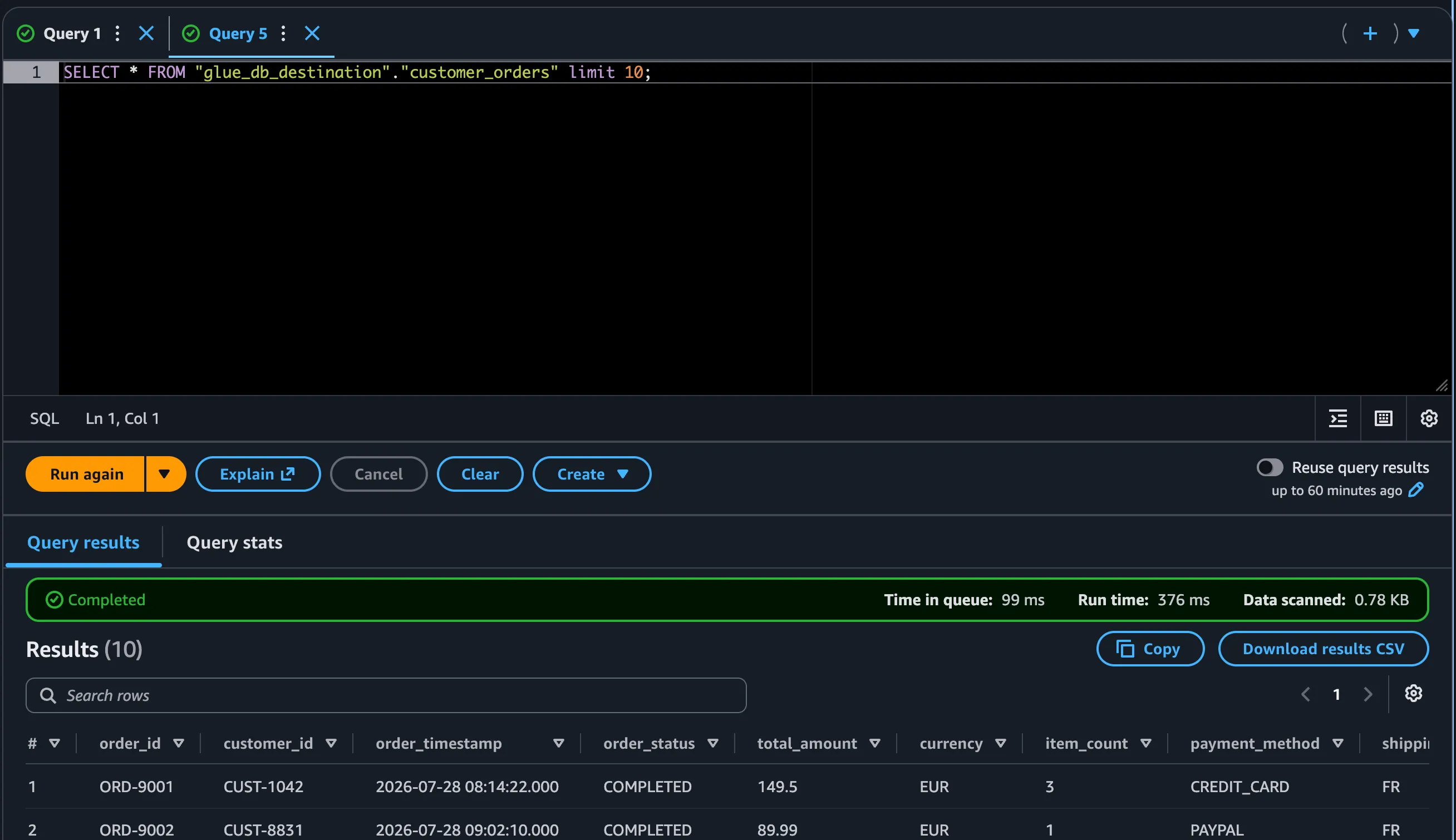
I have created a Lake Formation managed asset on the database glue_db_destination. Ensure the S3 bucket where the table is stored is registered on Lake Formation.
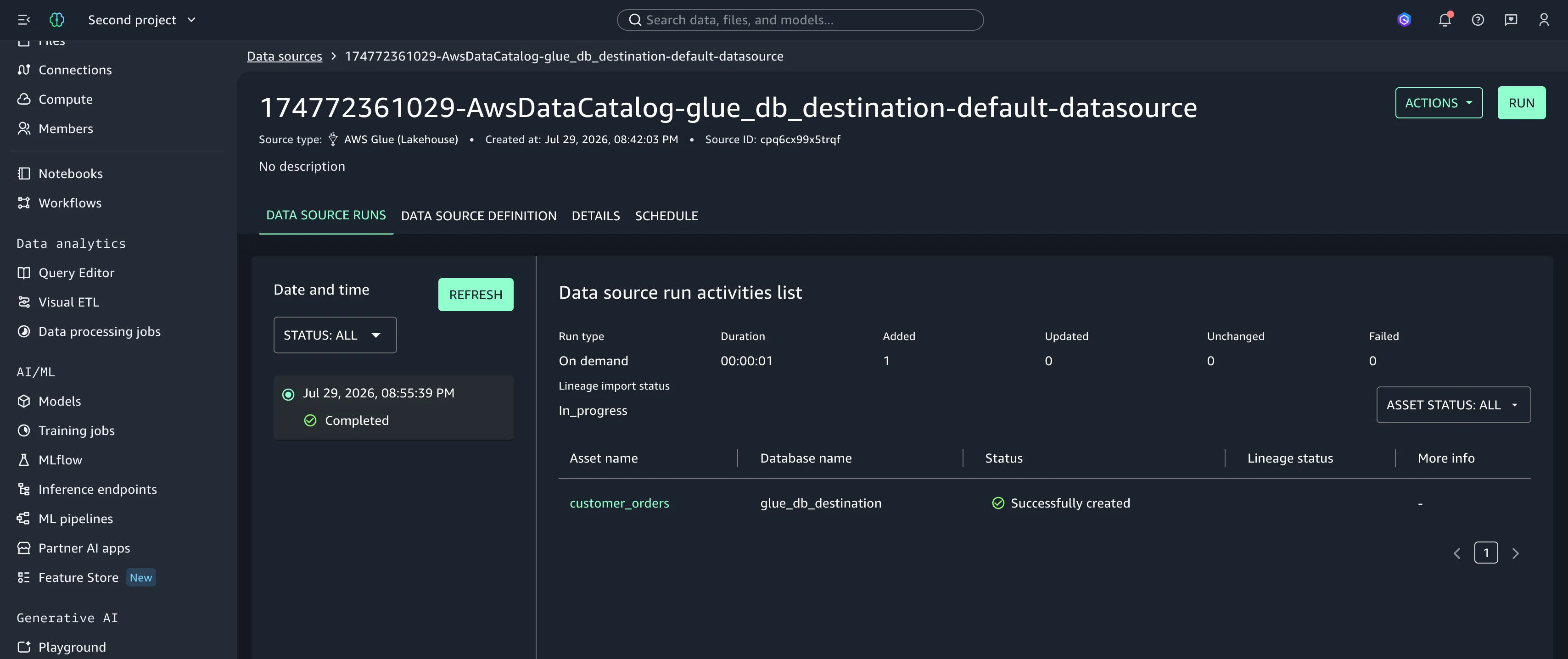
After running the datasource, I can see the asset was discovered:
On the first time publishing an asset, you might encounter this warning:
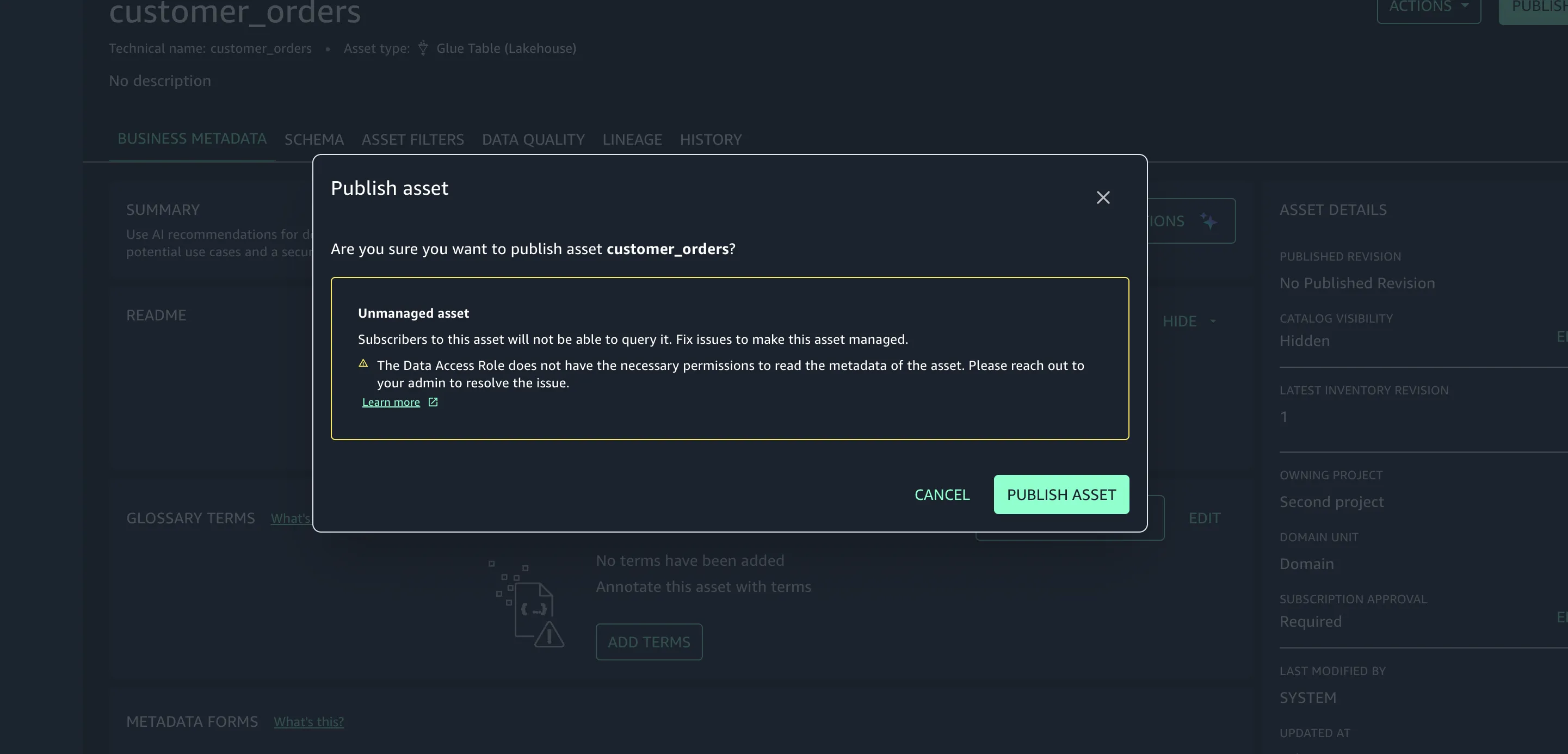
It states that the access is unmanaged, but this is due to missing permissions on the pub/sub database. The message is a little misleading. In this case, we can take the SMUS project created role, usually found on the landing page of the project:
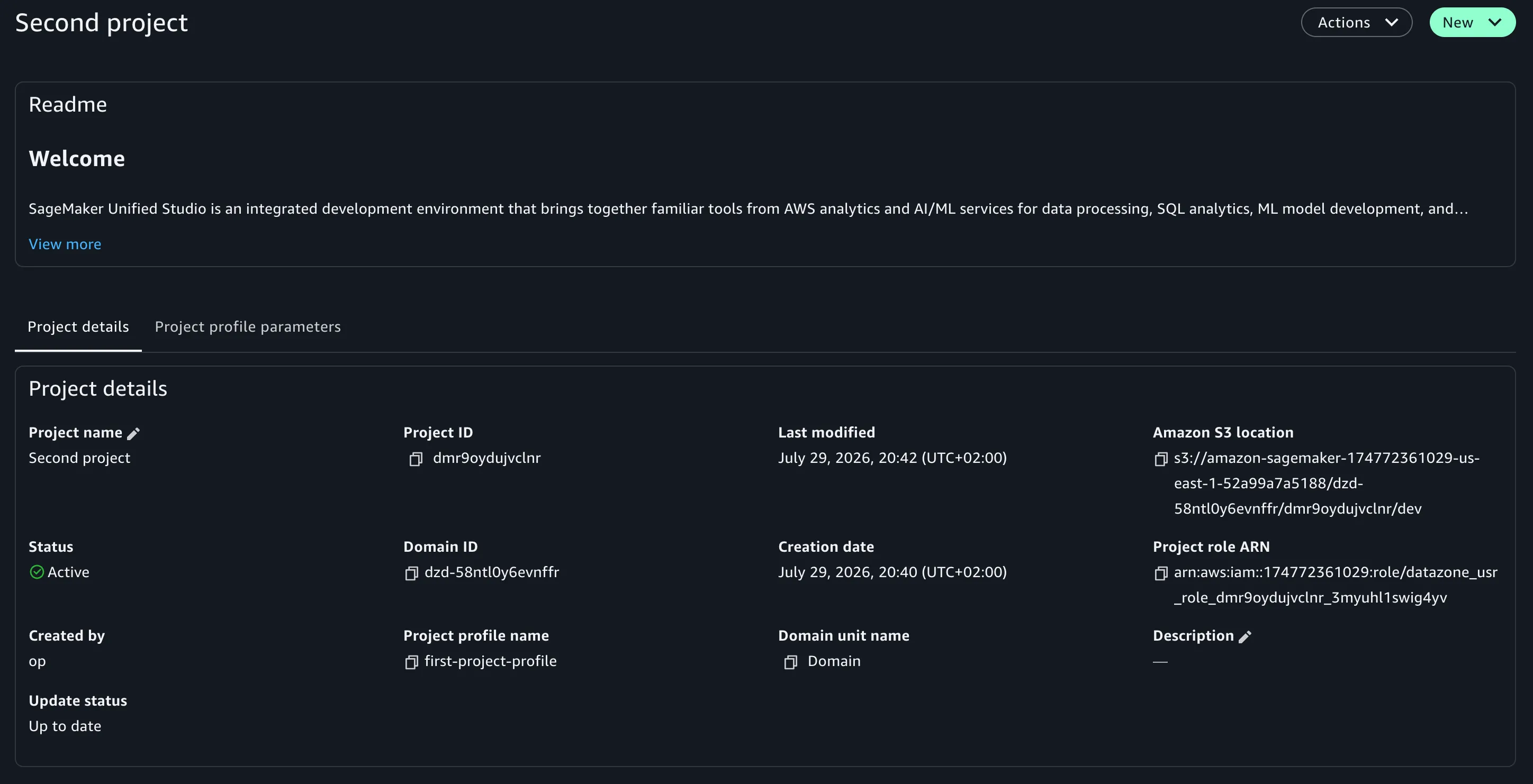
And give it DESCRIBE, SELECT, and Lake Formation grants on the pub/sub database on all tables. Upon publishing attempt again, the warning will be completely gone. If the asset is not Lake Formation managed or has other access issues, you will get the same warning.
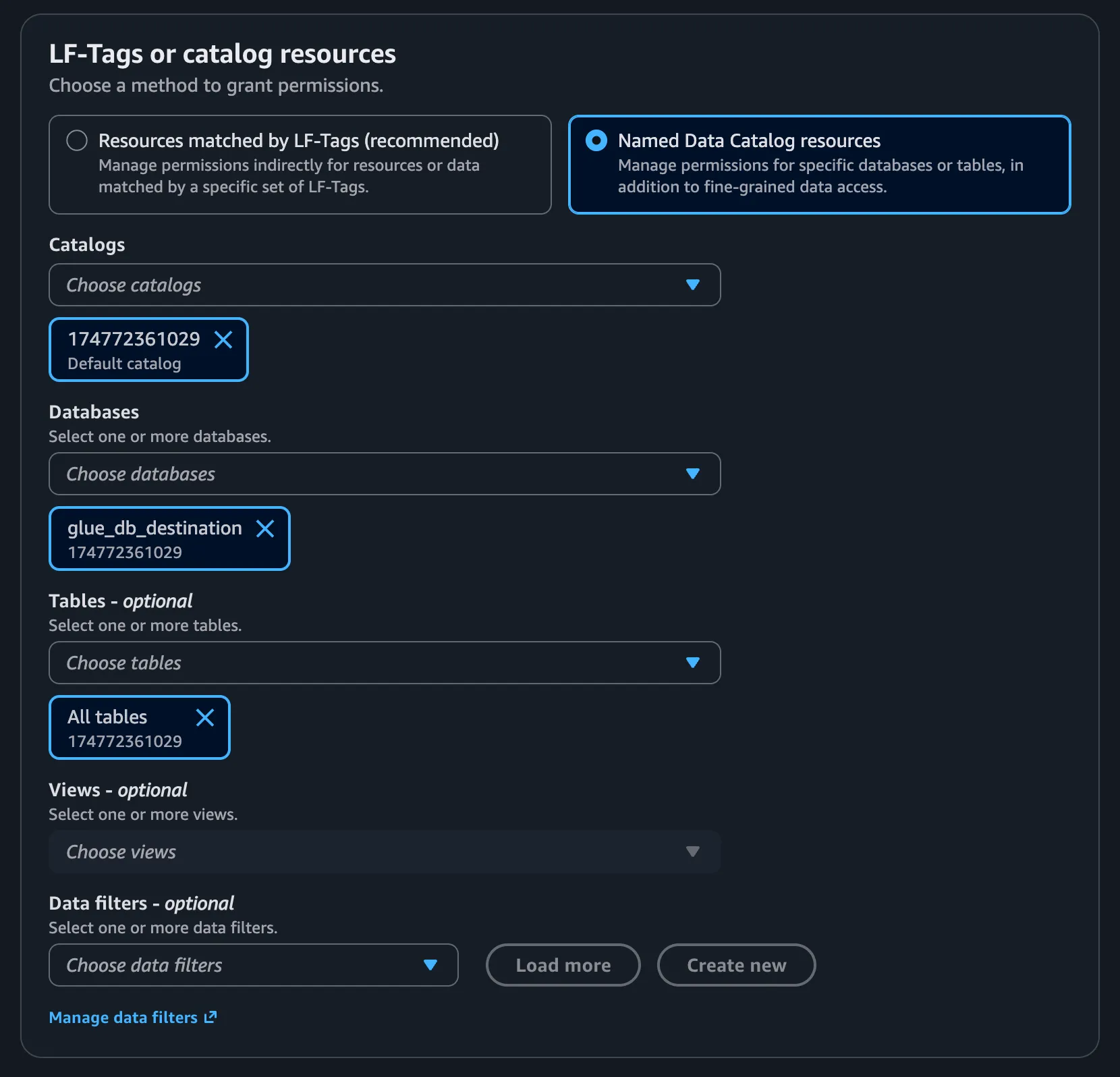
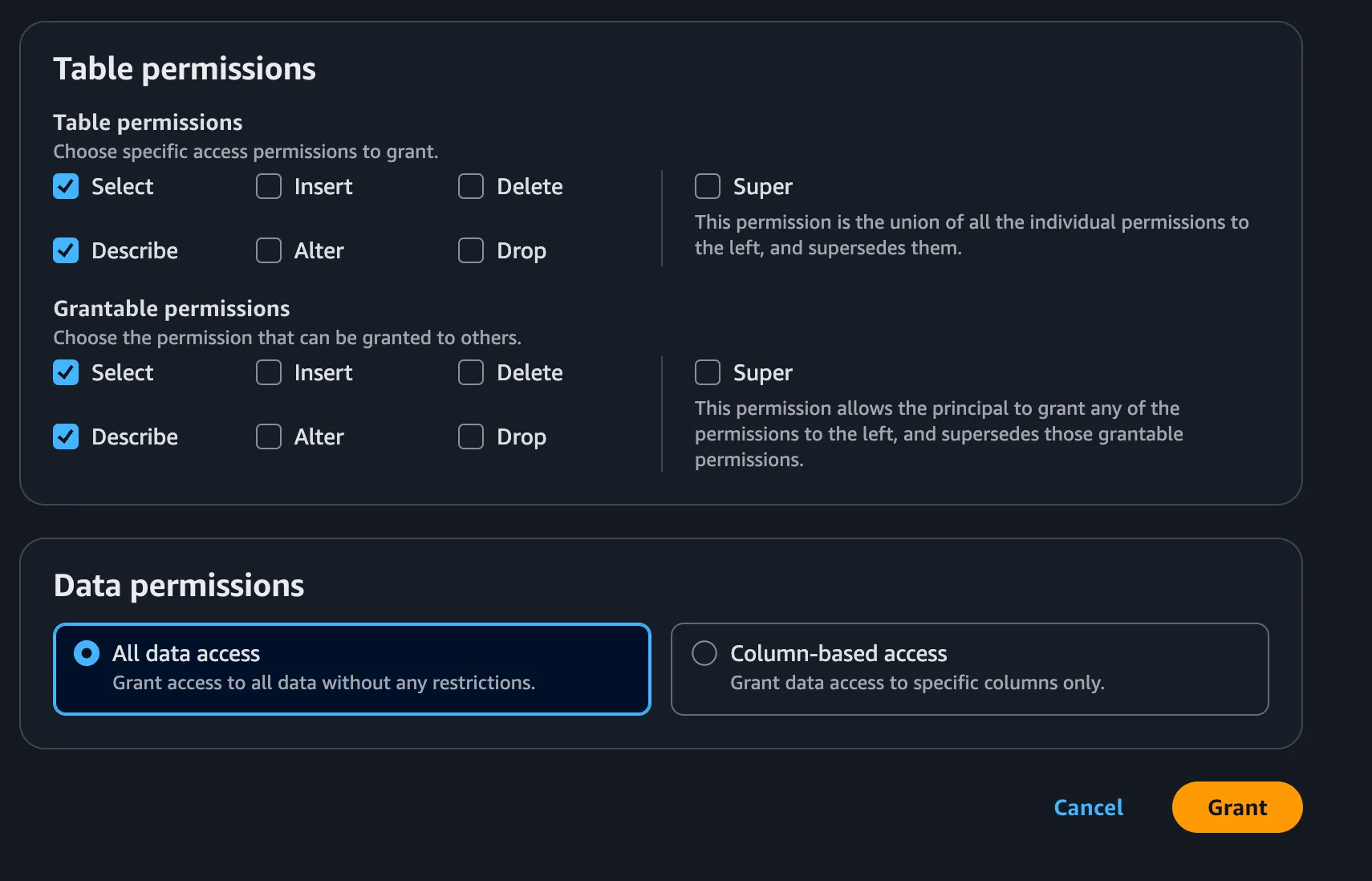
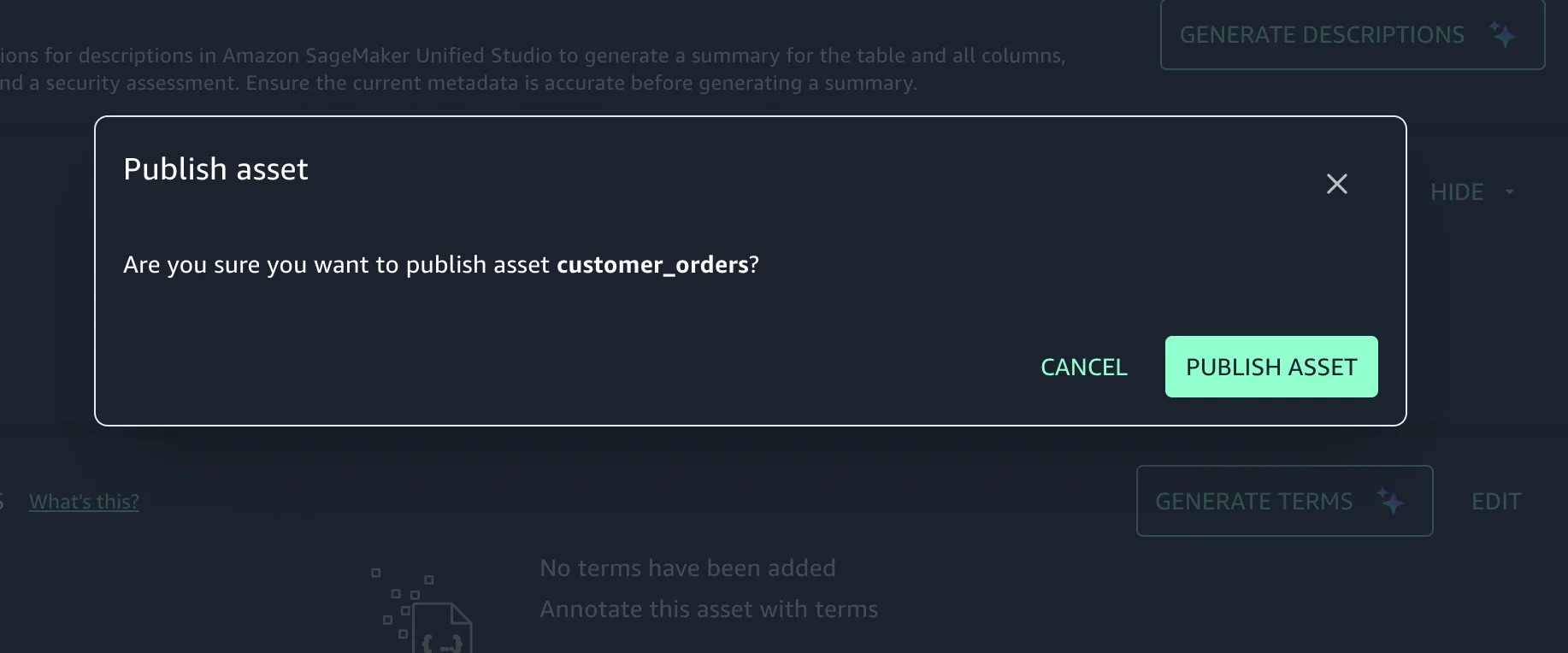
Once the asset is published, we can subscribe to it from the First Project:
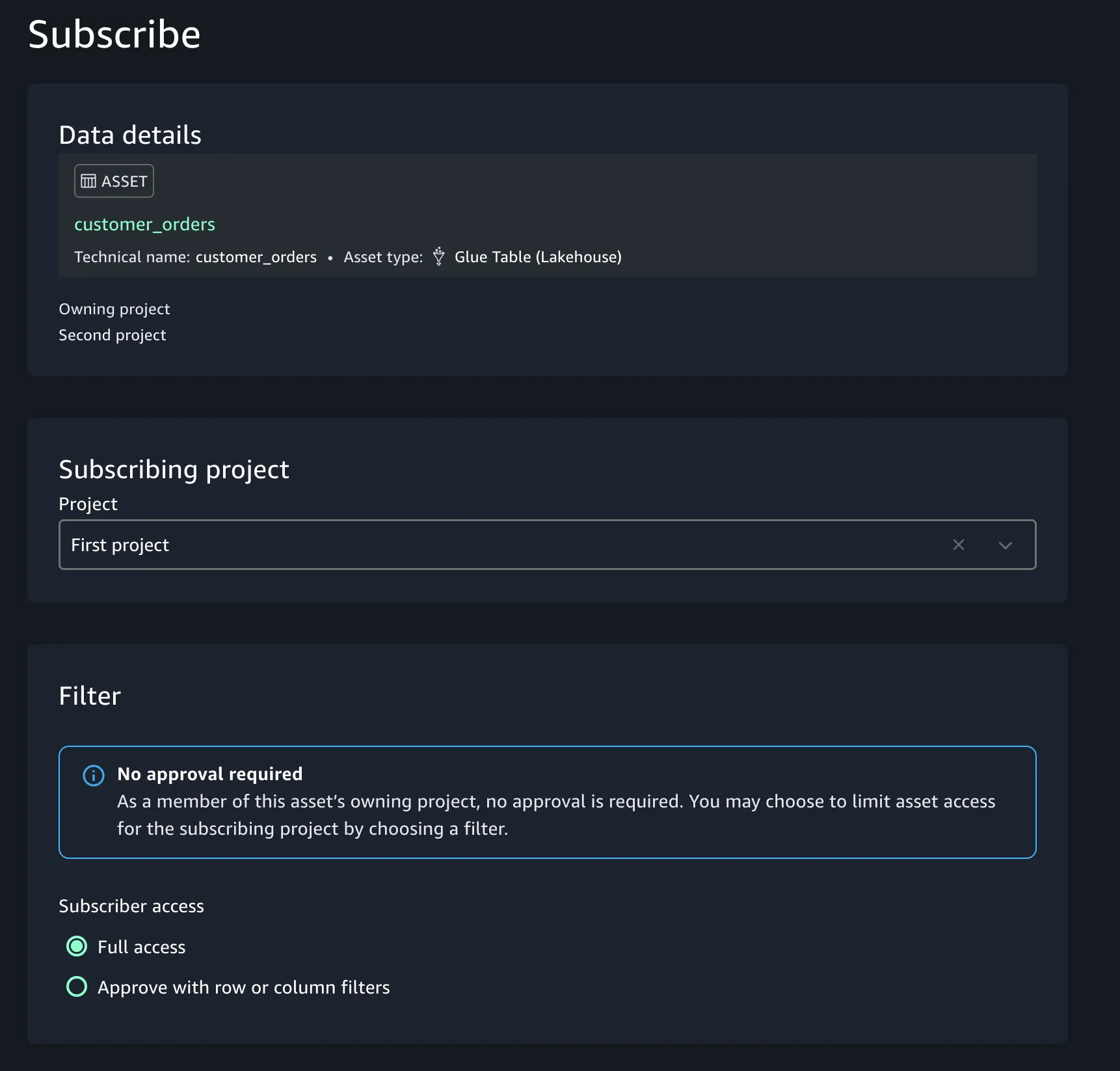
After the subscription process, grants and links will be created automatically, and we can query the asset from SMUS on the First Project Assets page using the Athena connector:
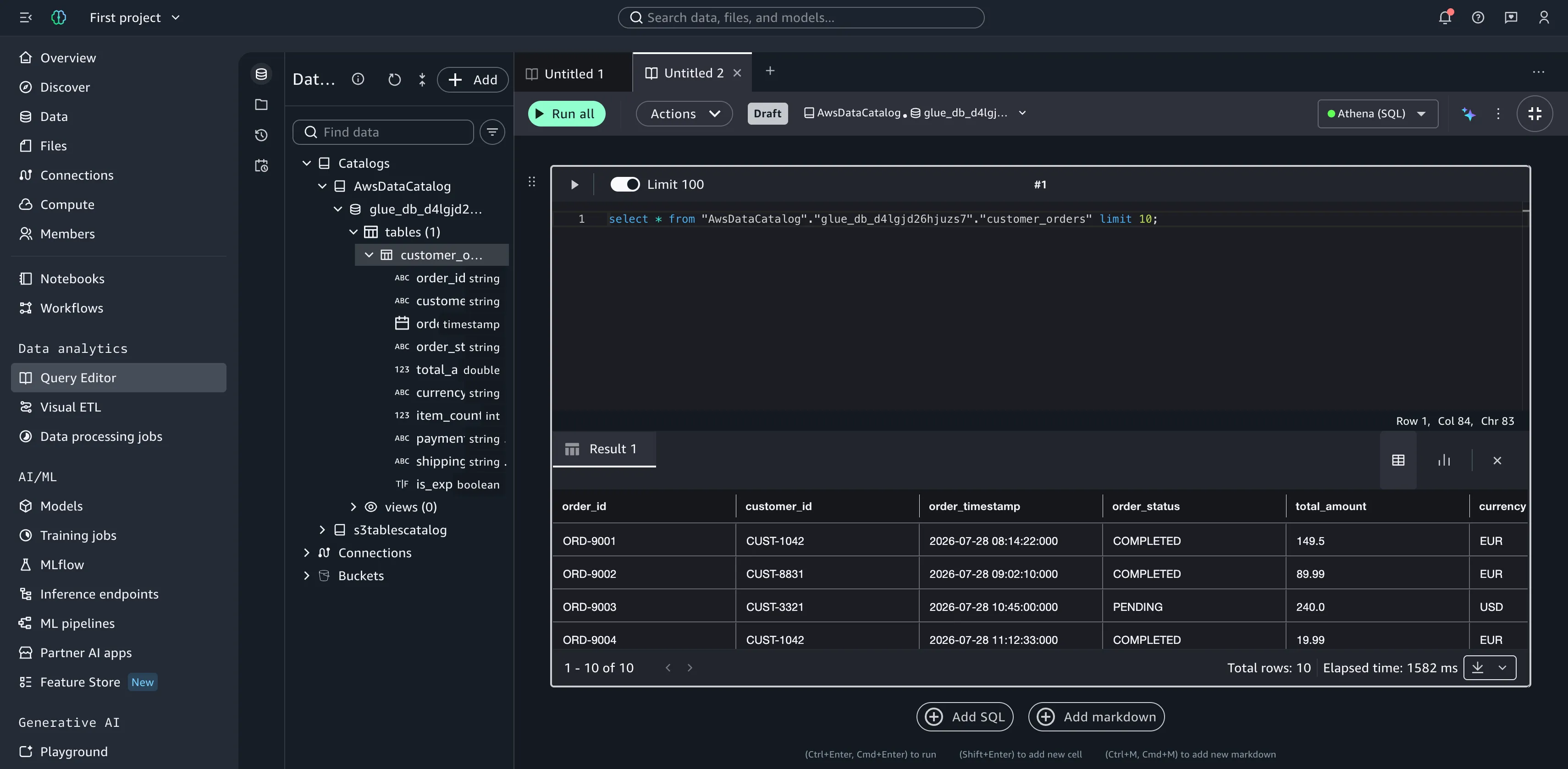
After this access grant, you should be able to publish the tables and subscribe to them smoothly. This is true as well for custom blueprints. Unlike DataZone, we must manage Lake Formation permissions of the project roles on the databases, especially the publication database. (If using one DB, it's easier).
If, on the other hand, you have multiple DataZone v1 projects in production already using this blueprint and two databases, and you want to move to SMUS, the best course of action is to use a custom blueprint and migrate/import the publication DB. You can create a subscription DB or keep only one. From DataZone, gather an inventory of the subscriptions made, and on SMUS, republish the data at scale and re-apply the subscriptions. Basically, the only lost thing would be the original dates of the subscriptions.
The move from DataZone comes with huge advantages in stability and overall fixes for cross-account operations at production scale. With the arrival of Lake Formation v5, we can expect an even more robust system. At the RAM level, LF v5 will share the whole Glue catalog instead of using individual databases, and then use regex, conditions, and grants to filter access. This makes the subscription strain on production very stable—more so than DataZone—avoiding intermittent race conditions and event-based errors. Since v3 was at the DB level, every DB operation required a RAM invitation, whereas on v5 it's only one done on the catalog.
On SMUS, we share more responsibility for grants and permissions, and it remains essential to understand how it operates for great at-scale architectures and safe, strain-free maintenance—especially regarding Lake Formation and AWS RAM.